How to Make a Minecraft Server: A Beginner Guide
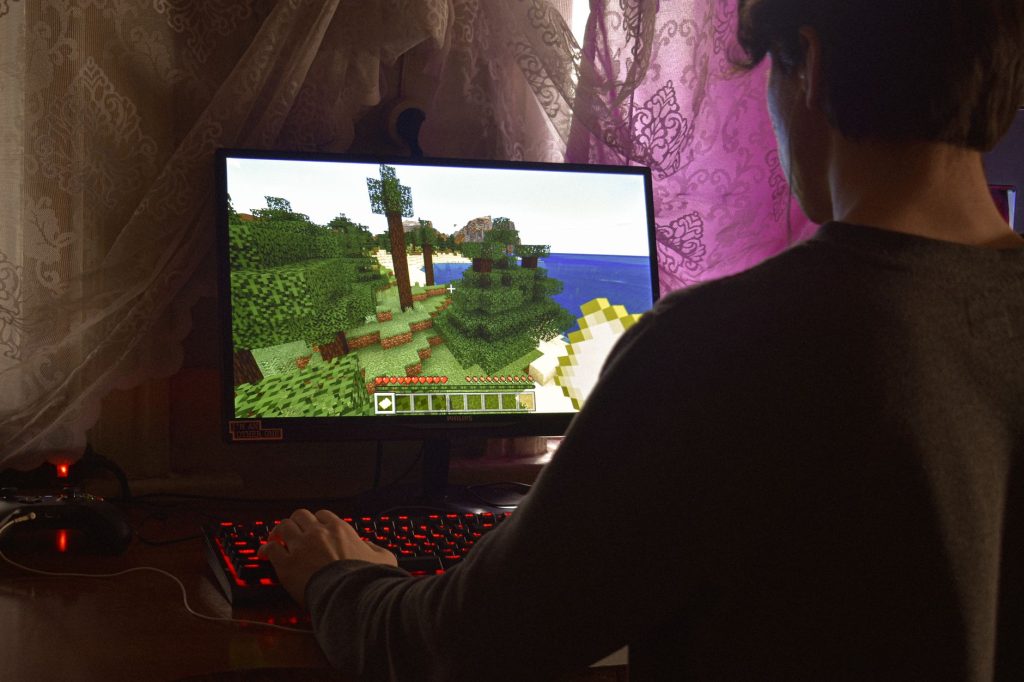
Running your own Minecraft server means you control the rules, the players and the world. It sounds intimidating, but the basics are very approachable. This guide walks through the main ways to create a server, what each one is good for, and how to get friends connected.
Three ways to host a server


Before touching any files, it helps to understand your options. There are three common routes, and the right one depends on how many people will play, how often, and how much you want to manage.
1. LAN — playing on the same network
If everyone is in the same house on the same Wi-Fi, you do not need a “real” server at all. Open your single-player world, pause the game, and choose to open it to LAN. Anyone on the same network can then join. It is instant and free, but it only works while your game is open and only for people on your local network.
2. Self-hosting on your own computer
You can download the official server software and run it on your own PC. This gives you a proper, persistent world that others can join over the internet. The trade-off is that your computer has to stay on and running the server for anyone to play, and it uses your home internet connection, which can affect performance for both the server and your own browsing.
3. A hosting provider
A hosting company runs the server for you on their hardware, so it stays online 24/7 without tying up your own machine. This is the most reliable option for a group that plays regularly, and it usually comes with a simple control panel. We cover this route in depth in Minecraft server hosting explained.
Setting up a self-hosted server, step by step
Self-hosting is the classic learning path, so let us walk through the shape of it. The exact menus change over time, but the overall process stays the same.
Step 1: Install Java
The Java edition server needs Java installed on your computer. Make sure you have a current version before you start, otherwise the server simply will not launch.
Step 2: Download the server software
Get the official server file from Minecraft’s own website. Place it in a new, empty folder of its own, because the server will create several extra files alongside it and you do not want them mixed in with anything else.
Step 3: Run it once and accept the rules
The first time you run the server file, it generates its configuration files and then stops, asking you to accept the end-user licence agreement. You do this by opening the file it created for that purpose and changing the relevant line to agree. Run it again afterwards and the world will start generating.
Step 4: Configure the basics
A settings file lets you tune the essentials — the game mode, the difficulty, whether the world is survival or creative, the maximum number of players, and the message people see in the server list. Start simple; you can always change these later.
Step 5: Let other people in
People on your home network can join using your computer’s local address straight away. Letting friends connect from outside your home is the trickier part, because their connections need a path through your home router to your computer. This is the step most beginners get stuck on, and it is exactly where a hosting provider saves you the hassle.
Java or Bedrock server?
If your group plays on PC, a Java server is the usual choice and has the widest plugin and mod support. If some of you play on consoles or phones, you will want a Bedrock-compatible server instead. Mixing the two editions on one server is possible with special software but adds complexity, so most beginners pick one edition and stick with it.
Keeping your server healthy
A server is a little like a pet — it needs occasional care. A few habits keep yours running smoothly:
- Back up your world regularly. Copy the world folder somewhere safe so a crash or a mistake never costs you everything.
- Watch your player limit. More players means more work for the machine. If things get laggy, that is often the cause.
- Keep the software updated. Updates bring fixes and new features, though it is wise to back up first in case a plugin needs time to catch up.
- Set clear rules. Even among friends, a quick agreement on griefing and PvP avoids hurt feelings later.
When to move to a host
Self-hosting is a great way to learn, but most groups eventually outgrow it. If you find yourself leaving your PC on overnight so friends can play, or wrestling with your router every week, that is the signal to consider a hosting provider. It removes the two biggest headaches — uptime and connectivity — in one step.
Frequently asked questions
Is it free to run my own server?
Self-hosting on a computer you already own has no direct cost beyond electricity and your internet. A hosting provider charges a monthly fee in exchange for keeping it online for you.
Do I need to be technical?
Less than you might think. Following a clear set of steps is enough for a basic self-hosted server, and hosting providers handle most of the technical parts for you through a simple control panel.
How many players can my server handle?
That depends on the machine running it and how heavily modded the world is. A modest setup comfortably handles a small group of friends; large communities need more capable hardware.
Why can my friends not connect from outside my home?
Connections from the wider internet have to be allowed a route through your home router to your computer. This is the most common sticking point with self-hosting, and using a hosting provider avoids it entirely.
Can I turn a single-player world into a server world?
Yes. You can move an existing world folder into your server’s directory so your established world becomes the multiplayer world. Always make a backup copy first.
Ready to start your world?
Browse the guides, or tell us your server project and we will point you in the right direction.
Get your Minecraft server
Play with friends, online 24/7
A hosted server keeps your world running even when your PC is off, so anyone can join anytime. Our plain-English guide walks through picking and setting one up.