How to Set Up Your Own Minecraft Server
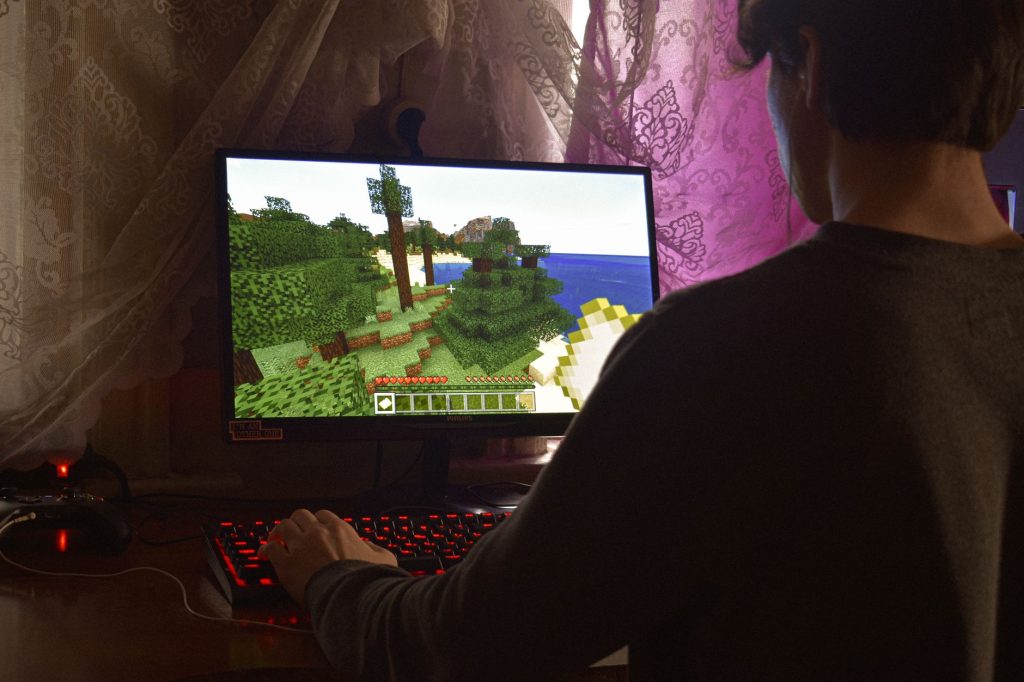
Running your own Minecraft server is the best way to play exactly how you want: your rules, your friends, your mods, and your world that stays online even when you log off. The good news is that you do not need to be a network engineer to do it. Whether you want a small survival world for a handful of friends or a larger community with plugins and custom gameplay, this guide walks you through every realistic option from easiest to most advanced.
Below you will find a clear path: decide how you want to host, install the server software, configure the important settings, open access for your friends, and keep everything safe and backed up. By the end you will understand exactly what a Minecraft server is and how to get one up and running.
What a Minecraft server actually is
A Minecraft server is just a program that keeps a world running and lets multiple players connect to it at the same time. When you play singleplayer, your own computer is quietly acting as a tiny server for one person. A dedicated server simply moves that job to a machine that can stay on all the time, so the world keeps ticking, mobs keep moving, and your friends can join whenever they like.
There are two editions to be aware of. Java Edition runs on Windows, macOS, and Linux and is the version most mods and plugins are built for. Bedrock Edition runs on consoles, phones, tablets, and Windows, and uses different server software. Pick the edition your group actually plays, because Java and Bedrock players cannot normally join the same vanilla server without extra software.
Choosing how to host your server
Before installing anything, decide where the server will live. Each option trades cost, effort, and control differently.
| Option | Best for | Effort | Notes |
|---|---|---|---|
| Minecraft Realms | Small friend groups, zero setup | Very low | Official, subscription-based, limited plugin support |
| Self-host at home | Learning and full control | Medium | Free software, uses your own PC and internet |
| Rented game host | Always-on communities | Low to medium | Paid monthly, no need to leave your PC on |
| Cloud VPS | Advanced users, big servers | High | Full control, you manage the operating system |
If you just want to play with friends tonight, a managed option is the path of least resistance. If you want to learn how everything works, self-hosting on a spare computer teaches you the most. For a guided overview of the paid route, see our explainer on Minecraft server hosting in plain English.
Installing the server software (self-hosted Java)
Self-hosting the official Java server is a great starting point because it is free and shows you the moving parts. Here is the general process.
- Make sure a recent version of Java is installed on the machine that will run the server.
- Download the official server file for the Minecraft version you want to play.
- Place the file in its own empty folder, because the server will create several files there.
- Run the server once. It will stop and ask you to accept the end user licence agreement.
- Open the file named
eula.txtand changeeula=falsetoeula=true, then save. - Run the server again. It will now generate the world and start accepting connections.
When it finishes loading you will see a console where you can type commands such as op yourname to make yourself an administrator, or stop to shut the server down safely. Always use stop rather than closing the window, so the world saves properly.
Configuring the important settings
The file server.properties controls how your world behaves. You can edit it with any plain text editor while the server is stopped. A few settings matter most for new owners.
| Setting | What it does |
|---|---|
| gamemode | Sets survival, creative, or adventure as the default |
| difficulty | Controls how dangerous mobs are, from peaceful to hard |
| max-players | Caps how many people can join at once |
| white-list | When on, only approved players can connect |
| motd | The message shown in the server list |
| online-mode | Verifies players against their accounts; keep this on for security |
Turning on the whitelist is one of the smartest early decisions. With it enabled, you add trusted players by name and nobody else can join, which prevents random visitors from wandering in and griefing your builds.
Letting your friends connect
Once the server runs, your friends need an address to join. On the same home network, they can use your computer’s local address. To let people outside your home connect, your router needs to forward the server’s port to your computer, and you share your public address with them. Port forwarding settings differ by router, so check your specific model’s instructions.
If port forwarding feels intimidating or your internet provider blocks it, a rented game host avoids the issue entirely because it is already reachable from the internet. This is the most common reason players eventually move from a home setup to a paid host, especially once the group grows.
Adding plugins or mods
Vanilla servers are great, but many owners want extra features like protected land claims, mini-games, or quality-of-life tools. Plugin-capable server software lets you drop in add-ons without changing the game client, which keeps joining simple for players. Modded servers go further and change the game itself, but every player must install the matching mods to connect. Choose plugins when you want easy access and mods when you want a transformed experience. If you are new to add-ons, our guide to the best mods to start with is a friendly introduction.
Keeping your server safe and backed up
A server is only as good as your last backup. Worlds can corrupt after a crash or a bad mod update, so copy the world folder regularly to a separate location. Keep the server software updated, only install add-ons from sources you trust, and never give administrator rights to people you do not know. A whitelist, regular backups, and a little caution will protect months of building from a single bad day.
Frequently asked questions
Do I need a powerful computer to run a Minecraft server?
For a small group, a modern computer with a few gigabytes of free memory is usually enough. The number of players, the size of the loaded world, and any mods all increase the demand, so larger communities benefit from a dedicated or rented machine.
Can my computer be used for the server and for playing at the same time?
Yes, you can run the server and join it from the same computer, but both tasks share your memory and processor. For more than a couple of players, a separate machine or a rented host gives smoother performance.
Is it cheaper to self-host or rent a server?
Self-hosting has no monthly fee but uses your own electricity, internet, and a computer that must stay on. Renting costs a regular fee but removes the maintenance and reachability headaches, which many people find worth it.
Can Java and Bedrock players join the same server?
Not on a standard vanilla server, because the editions use different networking. Special bridging software exists to combine them, but it adds complexity, so most owners pick one edition for their community.
How do I stop strangers from joining?
Enable the whitelist in your settings and add only the players you trust. Keeping online mode on also ensures players are who they claim to be, which blocks a common form of unauthorised access.
Ready to start your world?
Browse the guides, or tell us your server project and we will point you in the right direction.
Get your Minecraft server
Play with friends, online 24/7
A hosted server keeps your world running even when your PC is off, so anyone can join anytime. Our plain-English guide walks through picking and setting one up.