How to Run a Modded Minecraft Server
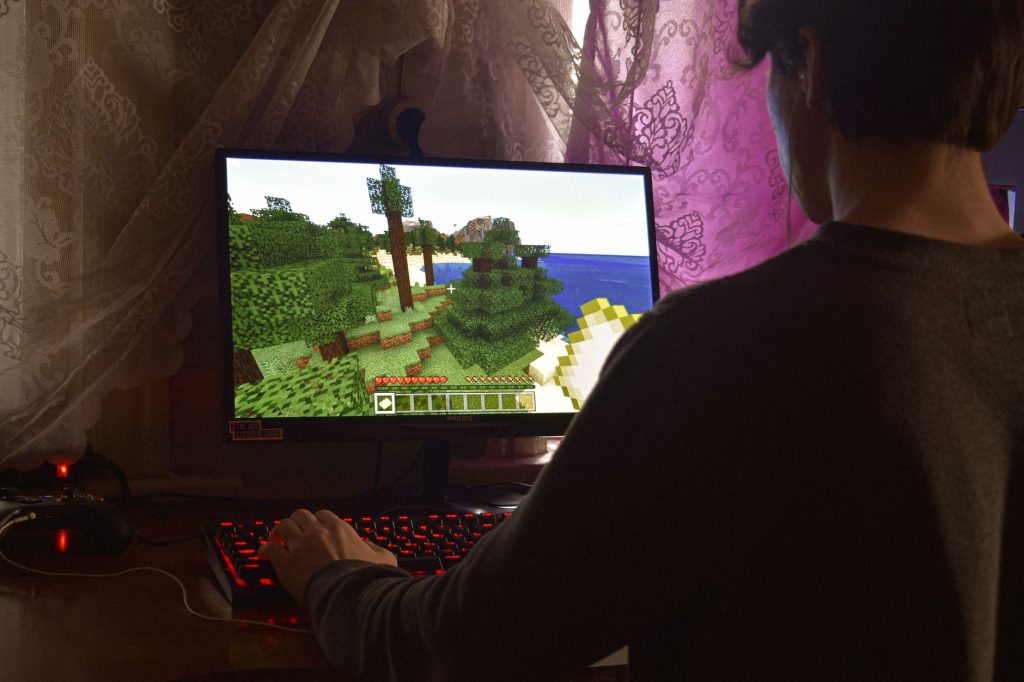
Running a modded Minecraft server is how you take a vanilla world and turn it into something that looks and plays nothing like the base game. Magic systems, new dimensions, automation machines, quest packs, hundreds of fresh blocks and mobs: all of it runs on the server so that everyone connected sees the same modded world at the same time. The catch is that a modded server is more demanding to set up than a plain one, because the server and every player have to agree on exactly the same set of mods. Get one file wrong and nobody can join.
This guide walks through what a modded Minecraft server actually is, how mod loaders and modpacks fit together, and how to keep the whole thing stable once your friends are online. It assumes you have already played a bit of Minecraft but have never hosted modded content before.
What “modded” really means on a server

On a vanilla server, the server software is the unchanged game running in dedicated mode. A modded server replaces that software with a version that has been patched to load mods. The mods themselves are extra code packaged as .jar files that you drop into a folder. When the server starts, the mod loader reads those files and weaves their content into the game.
The important rule to remember is that mods which add blocks, items, mobs or dimensions are usually required on both sides. The server needs them to generate and run the world, and every player needs the exact same versions installed on their own computer to render it. This is different from things like server plugins, which often live only on the server. If you have read our piece on the best mods to start with, those are client-and-server mods, and a modded server is simply the same idea scaled up to a whole group.
Pick a mod loader first
Before you download a single mod, you choose a mod loader. The loader is the framework that lets mods hook into the game, and a mod built for one loader will not run on another. The two you will see most often are Forge and Fabric, with NeoForge appearing as a newer fork in the Forge family. Each has a matching server build and a matching client installer.
The practical advice is simple: decide which mods or which modpack you want, then use the loader those mods were built for. Do not pick a loader first and hope your favourite mods exist for it. Here is a quick orientation.
| Loader | Typical strength | What to match |
|---|---|---|
| Forge | Large, long-established mods and big “kitchen sink” packs | Server and client must use the same Forge version |
| Fabric | Lightweight, performance-focused mods, faster updates | Server, client, and Fabric API version must align |
| NeoForge | A Forge-family option for newer game versions | Same matching rules as Forge |
Whichever you choose, the single number that has to match everywhere is the Minecraft version. A server, the loader, and every mod all have to target the same game version, for example all on the same release line. Mixing versions is the most common reason a modded server refuses to launch.
Two ways to build the server: handpicked or a modpack
You have two routes. The first is to install a loader server and then add mods one by one yourself. This gives you full control but means you are responsible for checking that every mod is compatible with every other mod. The second route is to use a modpack: a curated bundle of mods, configs and recipes that the pack author has already tested together.
For most people starting out, a modpack is the safer choice. The pack defines exactly which loader version and which mod versions to use, so you are far less likely to hit conflicts. Many launchers can install a modpack on the client side with one click, and reputable packs ship a matching server file or a server-install script so the two sides line up automatically.
Setting up from a modpack
Download the pack’s official server files (not the client pack) and unpack them into an empty folder. Run the included start script once. It will usually download the correct loader and dependencies, generate config files, and then stop so you can accept the licence agreement in the eula.txt file. After that, every player installs the same pack on their client, and they can connect.
Setting up by hand
If you build it yourself, install the loader’s dedicated server into an empty folder, run it once to generate the folders, then place each mod’s .jar into the mods folder. Keep a written list of every mod and its version so you can hand the exact same list to your players. Add mods in small batches and restart between batches, so that if something breaks you know which mod caused it.
Memory, configs and keeping it stable
Modded servers ask for more memory than vanilla because every extra block, recipe and mob lives in memory while the world runs. If the server feels sluggish or crashes when it loads, the usual fix is to give the Java process more allocated memory in the start script, within the limits of the machine it runs on. Do not allocate more than the host actually has free, or you will trade one problem for another.
Config files are the other half of stability. Most mods drop a config file you can edit to turn features on or off, adjust spawn rates, or disable a feature that conflicts with another mod. When two mods clash, the fix is often a one-line change in a config rather than removing a mod entirely. Always back up your world folder before changing configs or updating any mod, because a bad update can corrupt chunks that used a now-missing block.
Updating without breaking your world
Updating a single mod on a live world is risky, because if that mod adds blocks you have already placed and the update changes how they are stored, those blocks can vanish or crash the chunk. The safe habit is to update the whole pack as a set, on a fresh copy of the world first, and only then on the real one once you have confirmed it loads. Keep your old backups until you are sure the new version is healthy. If you are still deciding whether to self-host at all, our guide on Minecraft server hosting explained covers the trade-offs in plain English.
Frequently asked questions
Do players need the same mods as the server?
For mods that add content like blocks, items, mobs or dimensions, yes. The server and every player must run the same mods at the same versions, or players will be unable to join. Server-only plugins are the exception, but most “mods” are not in that category.
Can I add mods to a vanilla server?
Not directly. Vanilla server software cannot load mods. You replace it with a mod-loader server build, such as a Forge or Fabric server, and then add your mods into the mods folder.
Why does my modded server crash on startup?
The most common causes are a version mismatch (loader, mods and Minecraft not all on the same release), a missing dependency mod, or two incompatible mods. The crash log usually names the mod at fault, so read it from the top.
Is a modpack better than choosing mods myself?
For beginners, usually yes. A modpack is pre-tested as a set, so you avoid most conflicts. Handpicking mods gives more control but puts the compatibility testing on you.
How much memory does a modded server need?
More than vanilla, and it scales with the number of mods and players. There is no single figure, but heavier packs need noticeably more allocated memory than a plain server. Allocate within what the host machine actually has free.
Ready to start your world?
Browse the guides, or tell us your server project and we will point you in the right direction.
Get your Minecraft server
Play with friends, online 24/7
A hosted server keeps your world running even when your PC is off, so anyone can join anytime. Our plain-English guide walks through picking and setting one up.