How to Add Mods to Your Minecraft Server
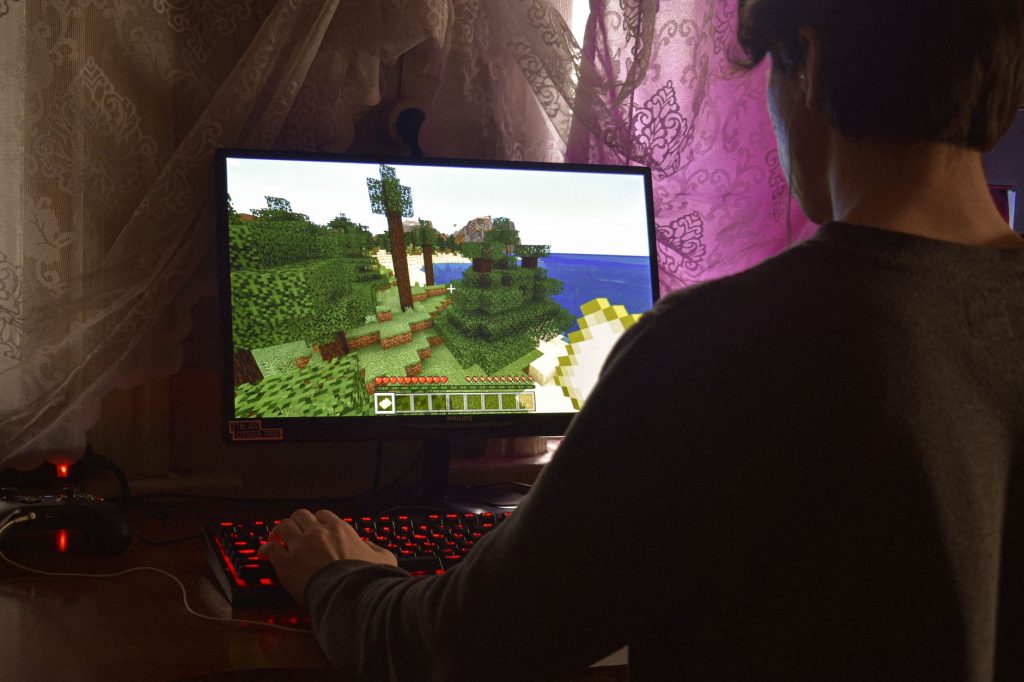
Learning how to mod a Minecraft server is the moment your shared world stops being limited to what the base game ships with. Once mods are installed server-side, everyone connected gets new blocks, mobs, machines or whole systems at the same time. The process is not hard, but it is unforgiving: one wrong file, one mismatched version, and the server simply will not start. This step-by-step guide shows how to add mods to an existing server without breaking it, and how to recover quickly if something does go wrong.
Before you begin, know that the word “mod” covers two different things on a server. There are mods that change the game itself, which need a mod loader and usually have to be installed on players’ computers too. And there are server plugins, which add features only on the server and leave the client untouched. This article is about the first kind, the true mods that run through a loader. If you want the bigger picture on running a heavily modded setup, our guide to running a modded Minecraft server goes deeper on modpacks and stability.
Step 1: Make sure you have a mod-loader server

You cannot drop mods onto vanilla server software. The plain server has no way to load them. To mod a Minecraft server you first need a server built on a mod loader such as Forge, NeoForge or Fabric. If your current server is vanilla, you replace its server file with the matching loader’s server build for the same Minecraft version, run it once to generate the folders, and only then start adding mods. The loader you pick must match the mods you intend to install, because a Forge mod will not run on a Fabric server and vice versa.
Step 2: Back up before you touch anything
This is the step people skip and regret. Before adding, removing or updating any mod, copy your entire world folder to a safe location. Mods that add blocks store those blocks in your save; if you later remove a mod, the chunks that used its blocks can fail to load. A backup means a bad mod is a five-minute restore instead of a lost world. Make backing up a reflex every single time you change the mod list.
Step 3: Find the mods folder and add files
When a loader server runs once, it creates a folder named mods alongside the server file. This is where mods live. To install one, you place its .jar file directly into that folder. There is no installer for server-side mods; the loader scans the folder on startup and loads whatever it finds. Two rules keep this clean.
| Rule | What it means |
|---|---|
| Match the loader | Only add mods built for your server’s loader and Minecraft version |
| Match the version everywhere | Server, loader, and every mod must target the same game release |
| Add dependencies too | Some mods require a library mod; install those alongside |
| Keep a written list | Record every mod and version so players can mirror it exactly |
Step 4: Add mods in small batches
The temptation is to drop twenty mods in at once and start the server. Resist it. If something breaks, you will have no idea which file caused it. Instead, add mods in small batches of a few at a time, then start the server and watch it reach the point where the world is ready. If it loads, stop it, add the next batch, and repeat. This patience is the difference between a five-minute fix and an afternoon of trial and error. When a batch fails, the mod you just added is almost always the culprit.
Step 5: Tell your players what to install
Here is the part that surprises first-timers. Most content mods are required on both sides. The server runs the world, but each player’s game has to render those new blocks and mobs, so every player must install the exact same mods at the exact same versions on their own computer. If a player is missing a mod, or has a different version, the server will refuse their connection. This is why the written mod list from step 3 matters: you hand players that list, or better, a launcher profile that bundles the same files, so everyone is in sync. Plugins are the exception, since they run only on the server, but true mods are not.
Step 6: Read the log when it breaks
When a modded server fails to start, it leaves a log explaining why, and that log is your best friend. Open it and read from the top. The most common messages point to one of three problems: a version mismatch where a mod targets a different Minecraft release than the server, a missing dependency where a mod needs a library you have not installed, or a direct conflict between two mods. The log usually names the offending mod, so you can remove or replace just that one rather than tearing the whole setup apart.
Fixing conflicts without removing mods
Not every conflict means deleting a mod. Many mods ship a config file you can edit to disable a clashing feature, change an ID, or turn off content that overlaps with another mod. The config files appear after the first successful startup, in a config folder. Editing a single line there often resolves a clash and lets both mods coexist, which is far better than losing one of them.
Step 7: Updating safely
Updating a mod on a live world is the riskiest routine task. A changed mod can alter how its blocks are stored, and your existing save may not survive that. The safe method is to test the update on a copy of the world first. Restore your backup into a separate folder, swap in the updated mod there, and start that test server. If it loads cleanly and your builds are intact, only then apply the same update to the real world. Keep the old backups until you are fully confident. If you would rather not manage all of this yourself, comparing managed options in our overview of Minecraft server hosting may save you the maintenance.
Frequently asked questions
Can I add mods to a vanilla Minecraft server?
No, not directly. Vanilla server software cannot load mods. You must replace it with a mod-loader server build, such as Forge or Fabric, for the same Minecraft version, and then add your mods to the mods folder.
Where do server mods go?
They go in the folder named mods, which the loader server creates the first time it runs. You place each mod’s .jar file directly into that folder, and the server loads them on startup.
Do players need to install the mods too?
For content mods that add blocks, items or mobs, yes. Every player must have the same mods at the same versions, or the server will not let them join. Server-only plugins are the exception.
Why won’t my server start after adding a mod?
Usually a version mismatch, a missing dependency, or a conflict between two mods. Read the startup log from the top; it normally names the mod causing the problem so you can remove or replace just that one.
How do I add mods without breaking my world?
Back up the world first, add mods in small batches, restart between batches, and test updates on a copy before touching the real save. This keeps any failure small and easy to undo.
Ready to start your world?
Browse the guides, or tell us your server project and we will point you in the right direction.
Get your Minecraft server
Play with friends, online 24/7
A hosted server keeps your world running even when your PC is off, so anyone can join anytime. Our plain-English guide walks through picking and setting one up.