Minecraft Skins: How to Find, Make and Apply Them
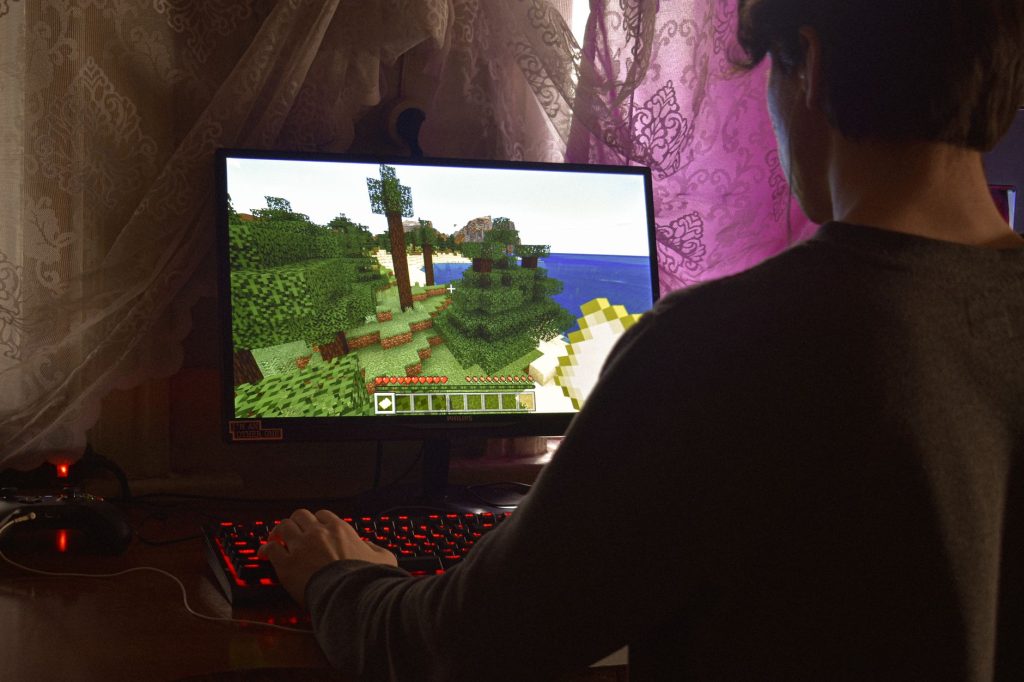
Your Minecraft skins are how the world sees you. The default characters are fine, but swapping to a skin that reflects your style, your favourite character, or just a fun design instantly makes the game feel more personal. The best part is that changing your appearance costs nothing, takes only a minute, and never affects how you play.
This guide covers everything about skins: what they are, where to find good ones, how to make your own, and how to apply them in both editions. By the end you will be able to confidently find, create, and wear any skin you like, and fix the common problems people hit along the way.
What a Minecraft skin is
A skin is the texture wrapped around your character model. It is a single image divided into sections that map onto the head, body, arms, and legs. When you choose a skin, every other player on a server sees that design on your character. Skins are purely cosmetic, so wearing a fancy one gives you no gameplay advantage and changing it does nothing to your inventory or progress.
There are two main model types. The classic model has wider arms, while the slim model has narrower arms. Many skins are designed for one or the other, so if a skin looks slightly off around the arms, switching the model type usually fixes it.
Where to find skins
You have several good ways to get a new look, ranging from instant to fully custom.
| Source | Best for | Effort |
|---|---|---|
| Built-in default skins | A quick change with zero downloads | None |
| Skin websites and galleries | Huge variety of ready-made designs | Low |
| In-game marketplace (Bedrock) | Curated packs, some paid | Low |
| Skin editors | A unique design that is truly yours | Medium |
When downloading from a website, stick to well-known galleries and avoid sites that demand logins, downloads of extra programs, or anything that seems off. A skin is just a small image file, so you should never need to install software to use one. For a careful walkthrough of getting skins from trusted places, see our guide on how to download Minecraft skins safely.
How to make your own skin
Designing a custom skin is one of the most satisfying ways to stand out, and you do not need any art experience to start. Online skin editors give you a paintable model where you can colour each part of the character directly.
- Open a skin editor and start from a blank template or an existing skin you like.
- Choose your model type, classic or slim, to match the look you want.
- Paint the head, torso, arms, and legs section by section, rotating the preview to check every angle.
- Add small details like shading and highlights to give the design depth.
- Export the finished image and save it somewhere you can find it again.
A good first project is to recolour an existing skin rather than starting from scratch. Adjusting the hair, clothing colours, and a few accents teaches you how the layout works before you attempt a full original design.
How to apply a skin
Once you have a skin file or have chosen one from a gallery, applying it is quick. The steps differ between editions.
Java Edition
On Java, skins are usually managed through your account profile on the official website or the launcher. You upload your skin image there, select the matching model type, and the change appears in game shortly after. Because it is tied to your account, the skin follows you onto every server you join.
Bedrock Edition
On Bedrock, you change your skin from the character menu inside the game. You can pick a default skin, choose one you own, or import a custom image file directly. The character creator also lets you mix and match individual pieces for a more layered look.
If your new skin does not appear right away, fully restarting the game usually refreshes it. For a more detailed, step-by-step walkthrough of the install process, our guide on how to install a Minecraft skin covers both editions in depth.
Fixing common skin problems
Most skin issues have simple causes. If the arms look too fat or too thin, you have the wrong model type selected, so switch between classic and slim. If parts of your character are see-through or patchy, the image was probably edited incorrectly or saved in the wrong format. If your skin shows for you but not for friends, give it a few minutes to update across servers, or rejoin the world.
A skin that simply will not load is often the wrong size or shape. Skins must follow the game’s expected image layout, so use a proper skin editor or a template rather than cropping a random picture. Sticking to dedicated skin tools avoids almost every problem before it starts.
Frequently asked questions
Do skins cost money?
Most skins are completely free, especially custom ones you make yourself and the huge libraries on community galleries. Some curated marketplace packs are paid, but you never need to spend money to change your look.
Will other players see my custom skin?
Yes. Once a skin is applied to your account or character, everyone on the same server sees it on your character, just as you see theirs.
What is the difference between the classic and slim models?
The classic model has wider arms and the slim model has narrower arms. Skins are often drawn for one specific model, so choosing the matching type ensures the arms line up correctly.
Can I use the same skin in Java and Bedrock?
You can use the same image, but the two editions apply skins through different systems. You set it on your account for Java and through the in-game character menu for Bedrock.
Is it safe to download skins from websites?
It is safe as long as you use reputable galleries and only download the image file itself. Avoid any site that asks you to install extra programs, since a skin never requires more than a small picture file.
Ready to start your world?
Browse the guides, or tell us your server project and we will point you in the right direction.